

Deadlock mods not working after an update
If your mods worked yesterday and the game looks stock today, a Deadlock update is the usual cause. There are two different problems, and they need different fixes.
Problem 1: the game no longer loads the addons folder
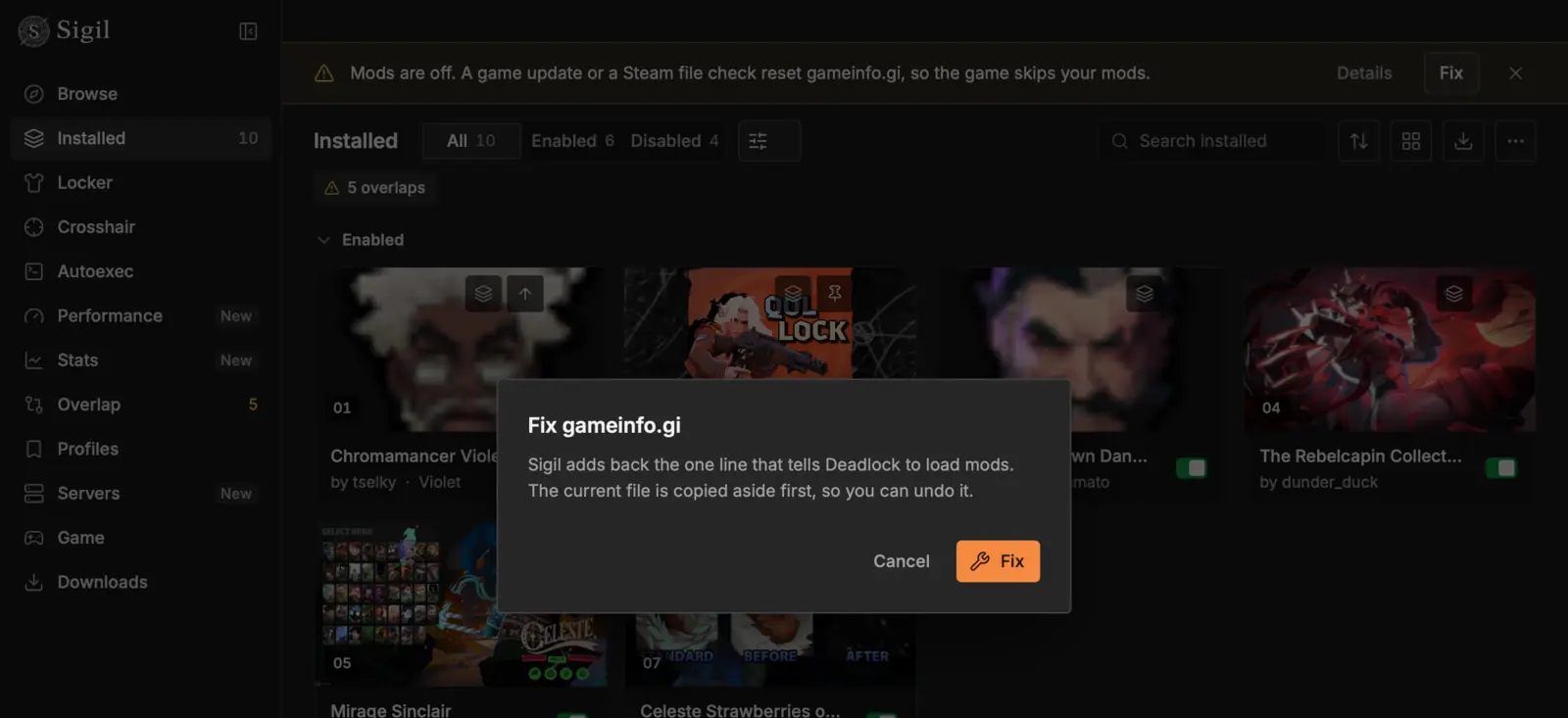
Deadlock only reads mods when game/citadel/gameinfo.gi lists citadel/addons in its SearchPaths, above Game citadel. Valve's own copy of the file does not have that line. Every game update, and every time you use Steam's "Verify integrity of game files", the file is put back to Valve's version. Your mods are still on disk, but the game skips all of them, with no error.
This is the most common cause, and it affects every mod at once.
Fix it by hand
- Close Deadlock.
- Open
game/citadel/gameinfo.giin a text editor. - In the
SearchPathsblock, addGame citadel/addonsdirectly aboveGame citadel. - Save, and start the game.
Only change the SearchPaths block. Editing other parts of the file can block matchmaking. You will need to do this again after the next update.
Fix it with Sigil
When Sigil sees the reset it shows a banner on every page with a Fix button. The fix adds the line back, copies the old file aside first so it can be undone, and keeps search paths another tool added. Launch modded also checks the file before it starts the game.
Problem 2: some mods broke because game files changed
If only some mods stopped working, the update probably changed the files they replace. A mod replaces game files by exact path, so when the game moves a file, the mod's copy no longer matches and the game quietly uses its own. For example, Abrams' model moved from models/heroes_staging/atlas_detective_v2/ to models/heroes_wip/abrams/, and skins made for the old path stopped working.
Updates can also change animations, skeletons and cameras, which can break older skins, and change interface layouts, which can make an outdated HUD mod crash the game at launch.
What to do
- Check the mod's GameBanana page for an update made for the new build, and install it.
- If the game crashes at launch, turn off HUD and interface mods first.
- Turn mods off in halves to find the one that breaks the game.
- Fixing an old mod yourself means moving its files to the new paths, then recompiling and repacking it. The GameTracking-Deadlock file history shows what moved.
With Sigil
Installed shows an update chip on each mod with a newer file. The compatibility review lists mods that use paths the game moved or removed, stale hero models or game data, with Repair, Fix all and Revert, and can turn off every mod with outdated data in one step. Find a broken mod halves your enabled mods across launches until it finds the culprit, and Launch vanilla starts a clean game to compare.
Download Sigil
Windows 10 and 11, 64-bit. Free and open source. No administrator rights needed.
Windows may show “Windows protected your PC” because the installer is not code signed yet. Choose More info, then Run anyway.